 VinciPhoto
Delete all your screenshots at once
VinciPhoto is a screenshot cleaner that finds the screenshots in your photo library and lists them by date. Tap Select All, confirm once, and they're gone. Everything you delete stays in Recently Deleted for 30 days, so a screenshot you still need is easy to bring back.
Download on the App Store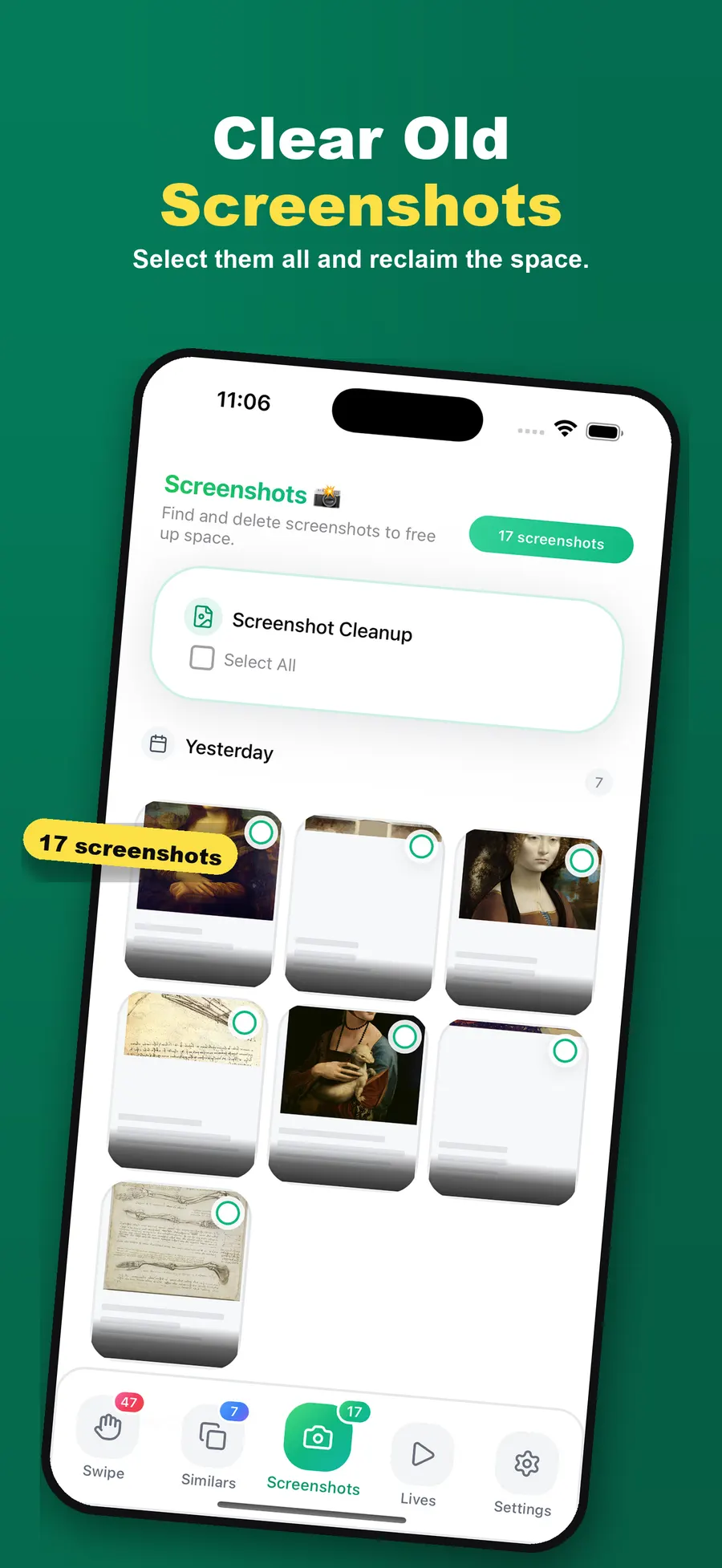
How to clean up screenshots
- Open the Screenshots tab. VinciPhoto scans your library on the device and shows every screenshot it finds, sorted by date.
- Select what should go. Use Select All, or tap individual screenshots to keep the ones you still need.
- Confirm the delete. The system Photos prompt asks you to confirm before anything is removed.
- Empty Recently Deleted when you’re ready. The space comes back once items leave that album, either after 30 days or when you empty it yourself.
Why screenshots pile up
Screenshots are usually taken for a moment: a boarding pass, an address, a confirmation code. Then they stay in your library, mixed in with your photos, long after you’ve stopped needing them. One screenshot takes very little space, but they make up a lot of the clutter you scroll past.
Before you delete: check for receipts and tickets
Some screenshots are worth keeping, such as receipts or documents. VinciPhoto sorts photos into categories like documents, and search by description lets you type “receipt” to find them before you clear the rest.
More ways to clear space
Screenshots are often the quickest win, but rarely the biggest. Our guide on how to free up photo storage covers the order that gets the most space back.
Frequently asked questions
How do I delete all my screenshots at once?
In VinciPhoto, open the Screenshots tab, tap Select All, then delete and confirm. In the Photos app you can also open the Screenshots collection under Media Types, tap Select, and choose the photos by hand. VinciPhoto's free plan allows 50 deletions a day, and Premium removes that limit.
How does VinciPhoto know which photos are screenshots?
It checks the screenshot label the system stores with each photo, then looks at image metadata and screen-shaped dimensions. This happens on your device. If it picks up a photo you want to keep, you can leave that one unselected before you delete the others.
Can I get deleted screenshots back?
Yes, for 30 days. Deleted screenshots go to the Recently Deleted album in Photos, where you can restore them. After 30 days the system removes them for good. To free the space right away, you can empty Recently Deleted yourself, but you can't restore those items afterward.
Can I keep some screenshots and delete the rest?
Yes. Screenshots are listed by date, so you can select a whole group or tap individual ones. Nothing is selected for you here, so nothing gets deleted unless you choose it. To find one you want to keep, try searching your library by description.
Keep reading
How to free up photo storage
Photos taking up too much space? Seven steps to get storage back, in the order that frees the most for the least effort, with and without a cleaner app.
Similar and duplicate photos
Find near-identical bursts and duplicate photos, keep the best shot in each group, and delete the rest. You confirm every delete, and analysis stays on your device.
Download VinciPhoto
Free to download. The full scan is never limited, so you can see how much space you could get back before you decide anything.
Download on the App Store