 VinciPhoto
Convert Live Photos to stills and save storage
A Live Photo stores a short video clip along with the picture, so it takes more storage than a regular photo. VinciPhoto converts Live Photos to still images, shows how much space each conversion saves, and removes the original once the still is saved.
Download on the App Store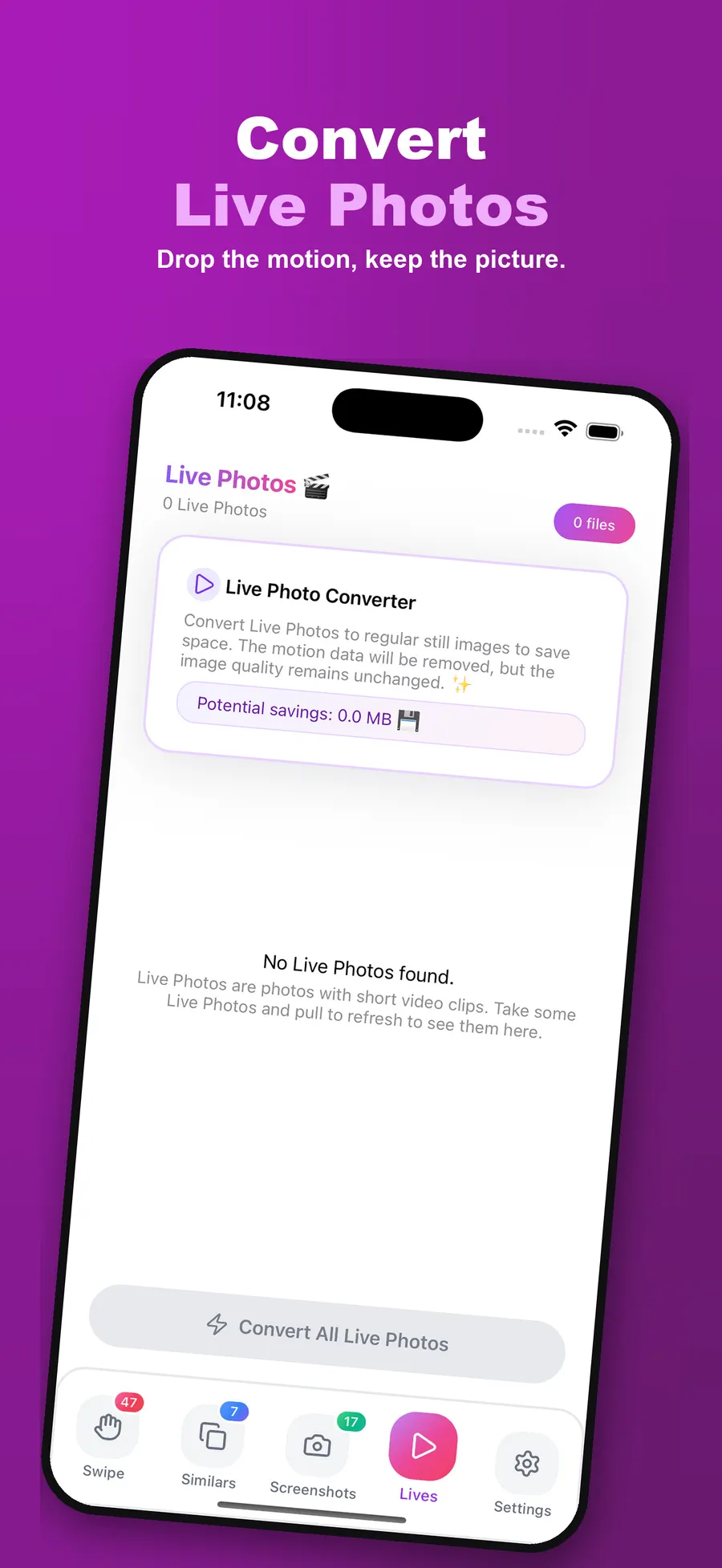
How to convert Live Photos to stills
- Open the Lives tab. VinciPhoto lists your Live Photos and shows the total space you could save.
- Preview a photo. Check the still and see its original size, still size and savings.
- Convert and confirm. Keep the still, and the original Live Photo goes through the system Photos delete confirmation.
Which Live Photos to convert
Motion is worth keeping on some photos, like a kid’s first steps or a pet doing something funny. It adds little to a photo of a parking sign or a menu. Start with the photos where you’d never notice the difference, and leave your favorites as they are.
What you give up
A converted photo no longer plays when you press it, and Live Photo effects like Loop and Bounce won’t be available for it. Once the original leaves Recently Deleted, the motion clip is gone for good, so check before you empty that album.
Get the rest of your space back
Converting Live Photos works well alongside deleting similar photos: delete the extra shots first, then convert the ones you keep. See the full order in our photo storage guide.
Frequently asked questions
Do Live Photos take up more storage?
Yes. A Live Photo is a picture plus a short video clip, so it takes more space than a still photo of the same scene. The exact difference varies from photo to photo. VinciPhoto shows the original size, the still size and the savings for each one before you convert it.
What happens to my Live Photo when I convert it?
VinciPhoto saves a still image and removes the motion clip by deleting the original Live Photo, after you confirm. You keep the picture, but it no longer moves. The original goes to Recently Deleted for 30 days. If a batch conversion fails, the app reverts the stills and keeps your originals.
Can I convert all my Live Photos at once?
Yes, with Premium. Batch conversion turns all your Live Photos into stills in one step, with the savings shown first. The free plan converts up to 5 Live Photos a day, one at a time, which is useful if you only want to convert a few large ones.
How do I stop taking Live Photos?
Tap the Live Photos button in the Camera app so it's turned off. To make the choice stick, go to Settings, then Camera, then Preserve Settings, and turn on Live Photo. Otherwise the Camera app may turn Live Photos back on the next time you open it.
Keep reading
How to free up photo storage
Photos taking up too much space? Seven steps to get storage back, in the order that frees the most for the least effort, with and without a cleaner app.
Screenshot cleanup
VinciPhoto finds the screenshots in your photo library and lists them by date, so you can select them all and clear them in one go. Deleted items can be restored for 30 days.
Download VinciPhoto
Free to download. The full scan is never limited, so you can see how much space you could get back before you decide anything.
Download on the App Store